

N4D Introduces a New Community Interface with the Agent Panel for Easier Creation
News originally published by
EIN Presswire
The redesigned N4D Community places the Agent Panel above the project feed and provides direct access to creation workspaces through the Studio menu.

Creators can upload a reference image to start a 3D model, or enter a text prompt to start an image or video project in the N4D Agent Panel.
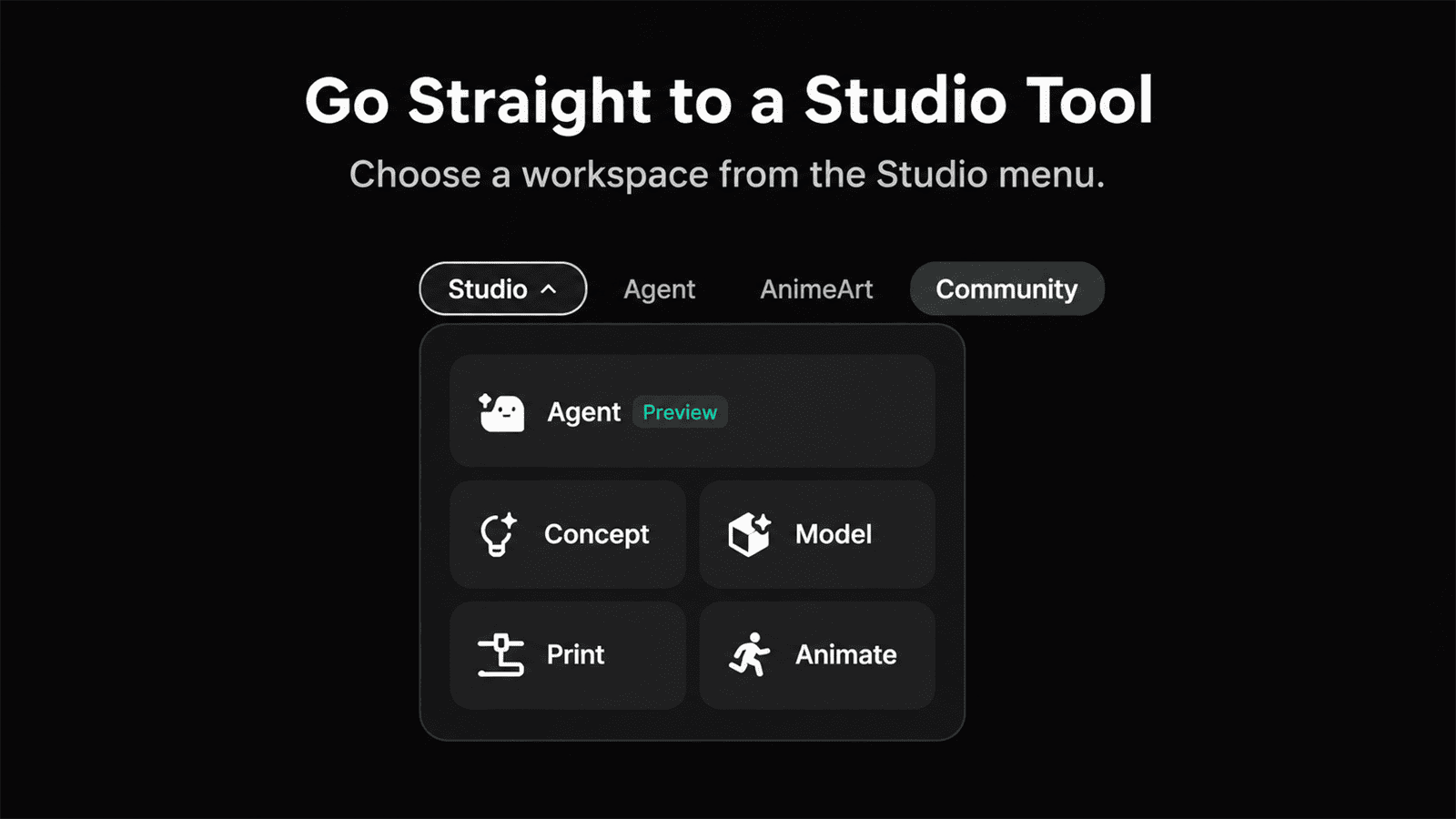
The Studio dropdown gives creators direct access to Agent (Preview), Concept, Model, Print and Animate workspaces from N4D Community.
N4D Community brings project discovery, an Agent Panel for 3D models, images and videos, and direct access to Studio tools together on one page.
Creators can browse community projects for inspiration, then start a new project in the Agent Panel. If they already know which tool they need, they can open its Studio workspace directly.
"A creator might start with only a shape, a texture, or a camera movement in mind. We wanted the first step to fit that stage of the work. A short prompt gives them a way to explore the idea before they have a full brief."
Feihu Zhang, CEO of N4D
A Redesigned Community Interface
The new Agent Panel replaces the shortcut cards and sits directly above the community feed. Selecting a creation option brings up the input for that project type. The feed below still offers Discover, Models, Images, and Videos. Creators can browse across formats in Discover or narrow their view to a single type of work. Visitors can preview a shared project from the feed to see a model or watch a clip before deciding which details to explore in their own work.
A game artist, for example, can browse shared models to see how other creators approach the proportions of a prop. When an idea takes shape, the artist can return to the panel, select 3D Model, and upload a photo or sketch of the prop.
Start Creating in the Agent Panel
In 3D Model, creators upload a reference image to start a model. A photo can show the proportions of an object, while a sketch can capture a silhouette before the design is finished. For Image and Video, creators start by entering a text prompt. An image prompt can describe the framing and lighting of a still scene. A video prompt can describe an action and how the camera follows it. An optional reference image can give an image or video prompt visual context, such as a color palette or composition the creator wants to carry into the result.
Direct Access to Studio Tools
The Studio dropdown serves creators who already know which workspace they need. It lists Agent (Preview), Concept, Model, Print, and Animate. A creator who already has a reference image and wants to turn it into a 3D asset can go directly to Model and choose Image to 3D there. Someone preparing an asset for 3D printing can choose Print, while someone working on motion can open Animate.
These two entry points serve different creative needs. Creators can open a Studio workspace directly from Community without first starting a project in the Agent Panel. For more on these changes, read the Studio update on the N4D blog.
Explore the New N4D Community
The redesigned N4D Community is available now. Open Community to browse public projects, start a project in the Agent Panel, or select a workspace from the Studio dropdown.
Advanced 3D Tools in N4D Studio
Once a 3D model is ready, the next step depends on how it will be used. With Animate, creators can rig a saved Studio model, try a preset motion to see how it moves, and export an animated GLB. For 3D printing, AI 3D Model Segmentation splits a model into separate parts that can be printed individually. Multicolor starts with a textured model, detects its color regions, and lets creators adjust the palette before exporting a 3MF file for multicolor printing. For more guidance on Studio tools, visit the N4D Help Center.
About N4D
N4D is an AI-powered 3D creation platform that helps creators and teams generate, edit, and prepare 3D assets for applications in gaming, design, 3D printing, and digital content production.
Product Hunt: https://www.producthunt.com/products/neural4d
G2: https://www.g2.com/sellers/neural4d
Trustpilot: https://www.trustpilot.com/review/neural4d.com
Media Contact
Name: N4D
Email: support@neural4d.com
Website: https://www.neural4d.com
Neural4D
N4D
Visit us on social media:
LinkedIn
Instagram
Facebook
YouTube
TikTok
X
Other
Legal Disclaimer:
EIN Presswire provides this news content "as is" without warranty of any kind. We do not accept any responsibility or liability for the accuracy, content, images, videos, licenses, completeness, legality, or reliability of the information contained in this article. If you have any complaints or copyright issues related to this article, kindly contact the author above.
